
mintOps
Tailcat support. Native herdr support. An SSH terminal for iPhone, iPad, and Mac.
Free · notarized Developer ID Download for MacmintOps is a terminal operations tool for working on several servers over SSH at once. With built-in Tailcat you can reach a server from anywhere; when the server runs herdr, its workspaces, tabs, and panes become a native UI for your coding agents; and the file browser and web browser let you review what the agent produced without leaving the app. You get a notification when an agent asks a question or finishes, and the Macs on your iCloud account are a tap away as My Macs, screen included. No account; your device talks to your server directly.
Take a look around
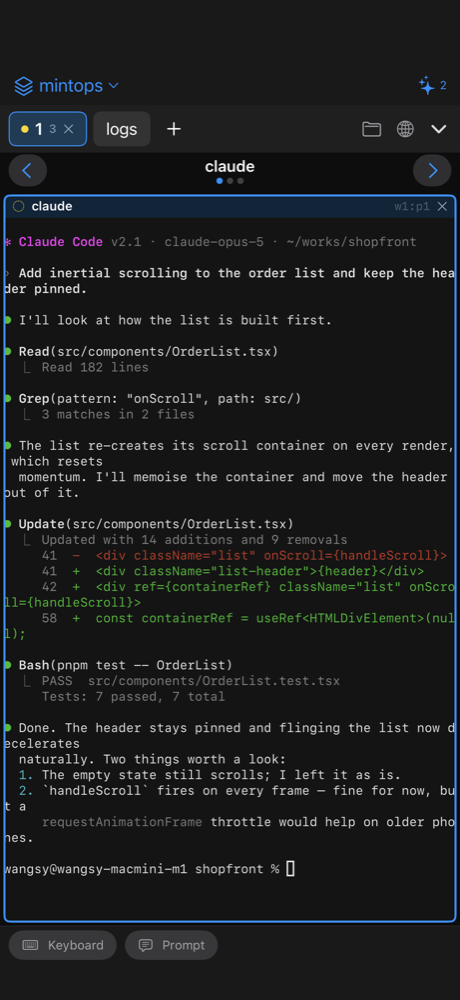
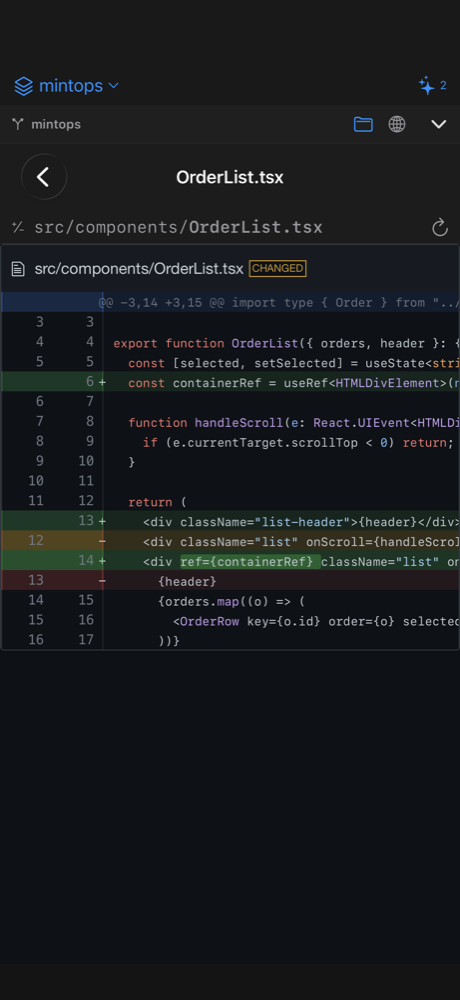
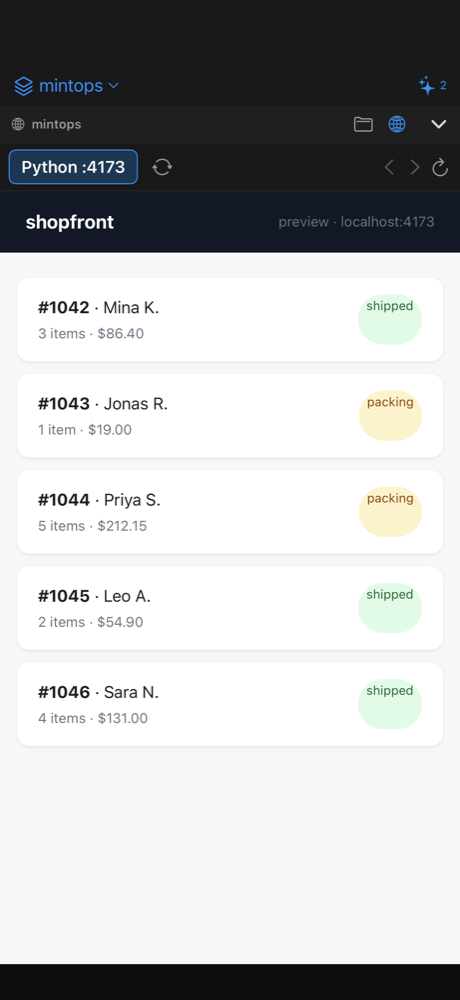
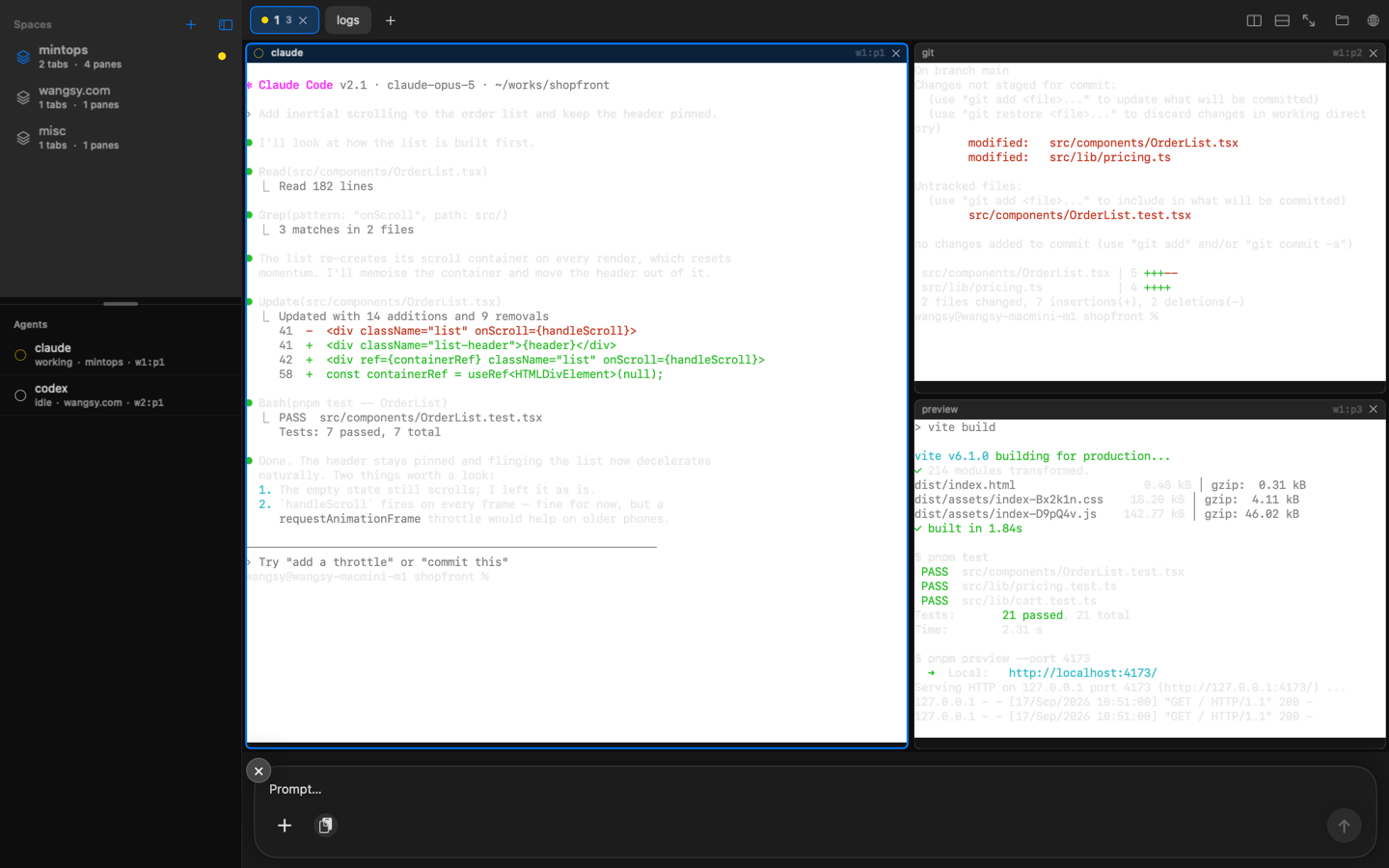
Tap an image to enlarge it. Use the arrows (or your ← → keys) to flip through.
At a glance
- Tailcat supportReach servers through a WireGuard tunnel with no public IP, no VPN, and no account. Works for a box behind NAT at home or in the office.
- Native herdr supportDetects herdr on the server and renders workspaces, tabs, split panes, and agents as native screens.
- File browserChanged-file list, colored diffs, and Markdown, HTML, images, PDFs, and source code rendered in the app.
- Web browserFinds the dev servers your workspace started and opens them in an in-app web view over SSH port forwarding.
- Agent notificationsA notification when an agent waits for approval or a choice, or finishes. Tap it to open that pane.
- Server Mode and iCloudRun your Mac as a server and it shows up on iPhone and iPad as one of My Macs, with iCloud taking care of the keys.
- Mac screen sharingSee and control your Mac from an iPhone, iPad or another Mac with one button.
- The Mac appThis Mac runs herdr on your Mac with no Remote Login; one server per window; keyboard shortcuts.
Features in detail
Tailcat support
mintOps embeds tailcat, Tailscale’s “Tailscale without Tailscale.” tailcat uses only Tailscale’s data plane (WireGuard tunnels, DERP relays, NAT hole punching) and none of its control plane (accounts, coordination server). Run tailcat serve 22 on a server once, and mintOps can SSH into it without a public IP or port forwarding.
- No account, no coordination serverThere is no Tailscale account, no coordination server, and no separate VPN app. You connect with the
tc…address the server prints, or a name published as a DNS TXT record. - Starts relayed, upgrades to directThe connection is bootstrapped through a DERP relay and automatically upgrades to a direct path once NAT traversal succeeds. The session tab shows the path and latency, e.g.
relay · 79 ms→direct · 0.3 ms. - Client identity keysGenerate an identity key in Settings or import one from the tailcat CLI. Put its public key in the server’s
--allowlist to admit only your devices. Without a key, each connection uses a one-time identity. - Paste one connection blockPaste the connection block (JSON) a server owner gave you with the Paste button in the New Connection screen, and the address, port, user, sign-in and identity key are filled in at once. Authenticate with a password, an SSH key, or None (for
no-auth-sshservers). - DNS name safety checkWhen you connect to a server published under a DNS name, mintOps also tries it the way a stranger would and warns you if the server lets any device in.
- macOS: command-line toolThe Mac build bundles the tailcat CLI. Link it once from Settings and use
tailcat ssh,tailcat ping, andtailcat servein Terminal. Keys created in the app can be exported for the CLI. - Connection logSettings → Tailcat → Connection Log shows DNS resolution, relay handshakes, and the switch to a direct path.
Two lines on the server
tailcat genkey --key=default --fixed-region   # a server key whose address survives restarts
tailcat serve 22                              # expose the local sshd through the tunnel
Everything else, including the file browser and web browser, works the same over a Tailcat tunnel.
Native herdr support
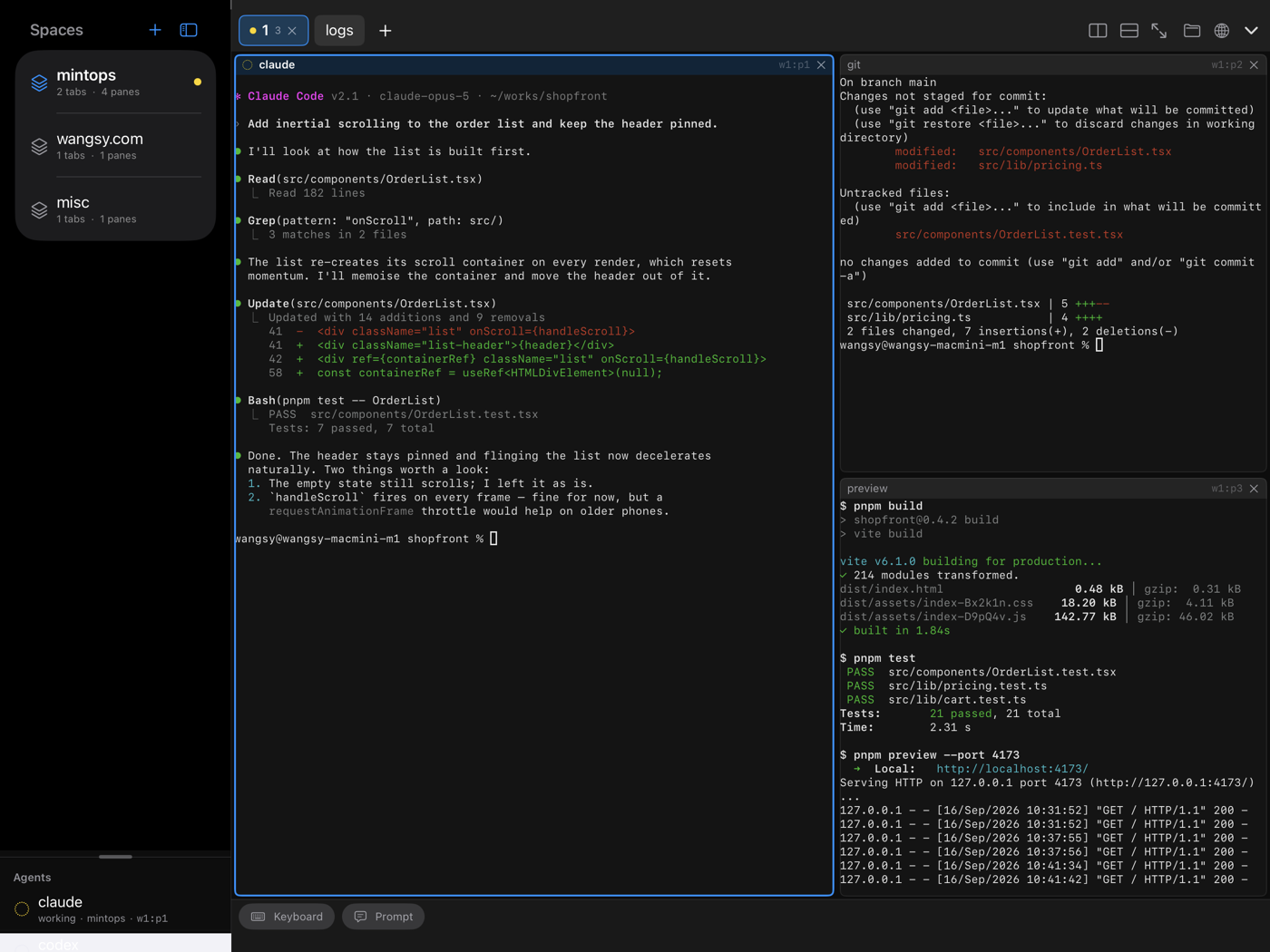
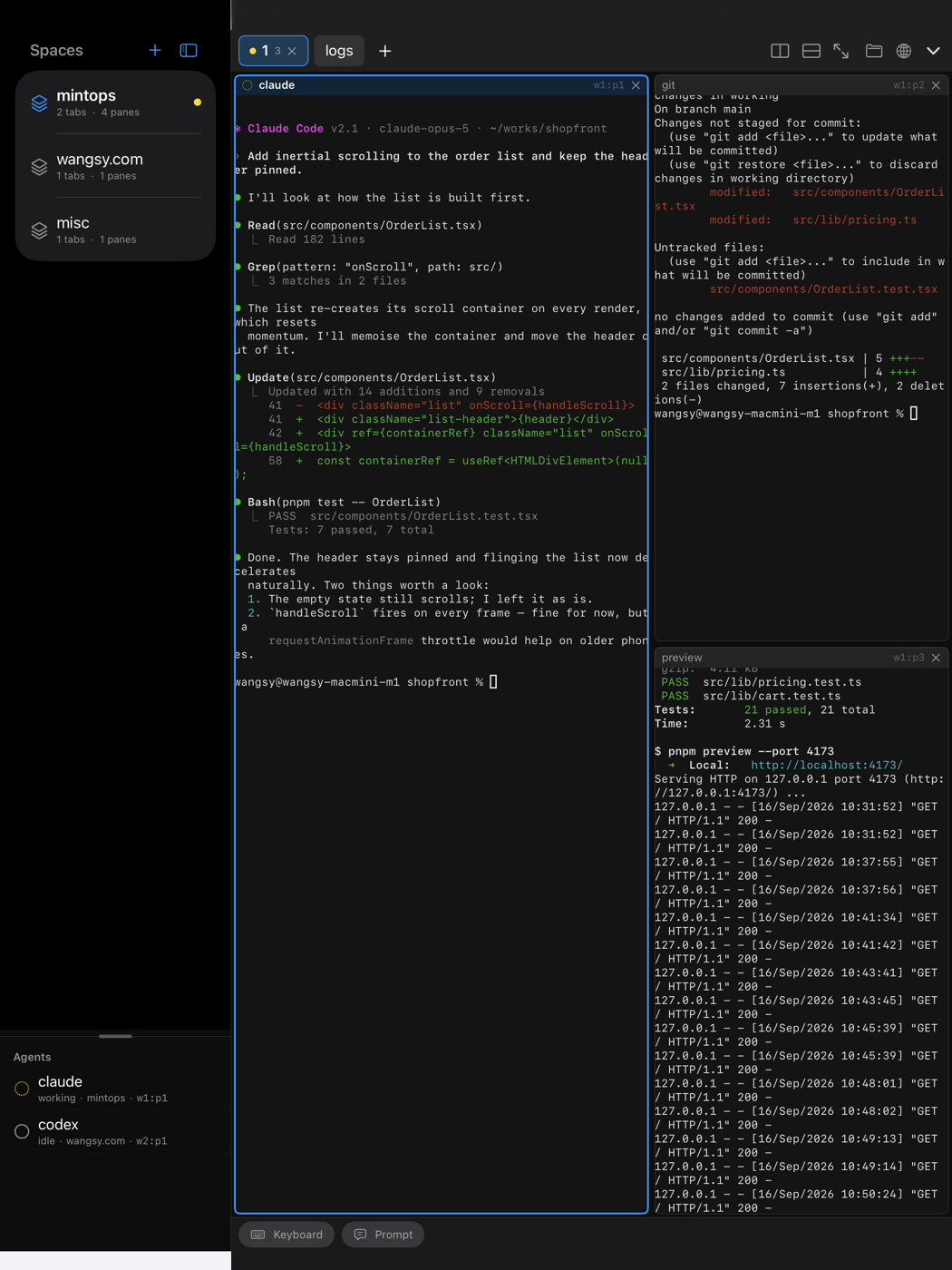
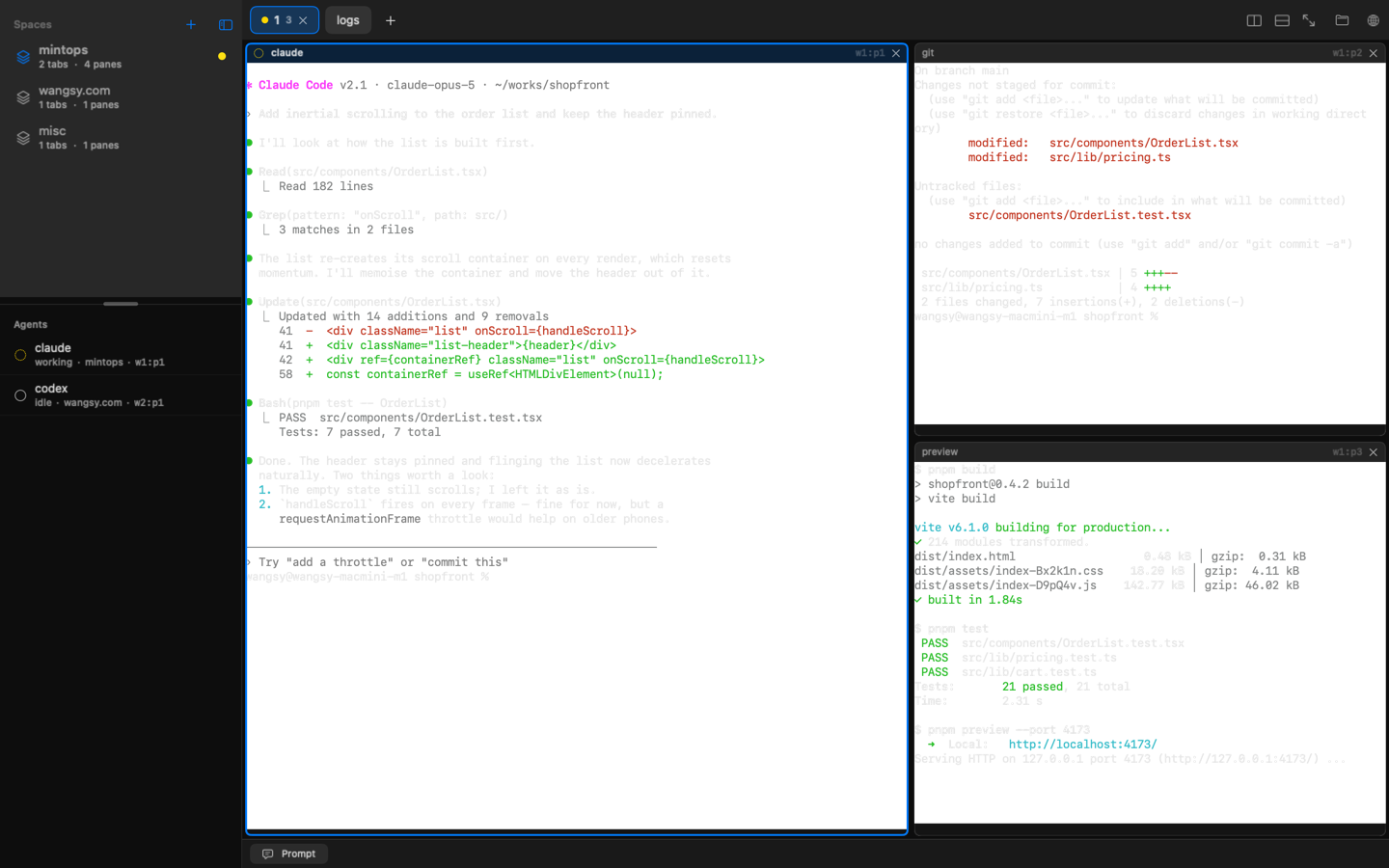
herdr is “a runtime where coding agents live”: a terminal multiplexer (background server + CLI) that runs agents such as Claude Code inside tabs and split panes within a workspace. Right after connecting, mintOps checks whether herdr is installed on the server and, if so, enters a dedicated herdr mode instead of a plain shell. Rather than scrolling a tmux screen on a small phone, workspaces, tabs, panes, and agents all become native UI.
- Auto-detect, auto-startAfter login, mintOps looks for
herdr(including Homebrew, cargo, and local bin paths). If the server process is not running, it startsherdr serverfor you. Nothing to configure. - Workspace sidebarWorkspaces on the server appear as a native list with the focused one selected. Below it, a pinned agent list shows each agent’s state (idle / working / blocked); tap one to jump to its pane.
- Tabs and split panes, faithfullyA workspace’s tabs show up in a native tab bar where you can create, close, and switch them. herdr’s BSP split layout arrives as cell-based rectangles and is mapped proportionally to the screen, so the pane structure you built on the server is reproduced exactly.
- Every pane is a real terminalEach pane attaches to a herdr terminal session over its own SSH channel. Frames from the server are rendered by SwiftTerm, and keystrokes and resizes are sent back. Inside a pane it is simply a full terminal.
- Prompt composerWrite longer instructions for an agent in a composer at the bottom of the screen instead of the terminal keyboard. It shows the send (⌘↩) and new-line keys, with a ? guide on a hardware keyboard.
- Show All WorkspacesEvery space in a grid with the screen you last saw, to switch to, create or close. Search and arrow keys work; on iPad, pinch in with two fingers.
- WorktreesWorktree spaces grouped under their repository (the head row shows the primary branch), with create, open, delete checkout and close space in the app.
- Sessions rememberedSessions survive suspend and app restarts, and the last one reconnects to the same space, tab and pane. The scroll position holds when the keyboard comes and goes or you switch tabs, and a “Scroll to bottom” button appears when you scroll up.
- Zoom on iPad and Mac, pager on iPhoneiPad and Mac switch between the full layout and a single zoomed pane. iPhone always shows one pane large and lets you swipe between panes.
How it fits together
SSH connect ──▶ command -v herdr ──▶ (found) enter herdr mode
  ├─ workspace / tab / pane / agent lists  ← herdr CLI (JSON over SSH exec)
  ├─ pane layout  ← herdr pane layout → mapped proportionally into SwiftUI
└─ pane terminal ← herdr terminal session control <pane> (frames ↔ input/resize)File browser
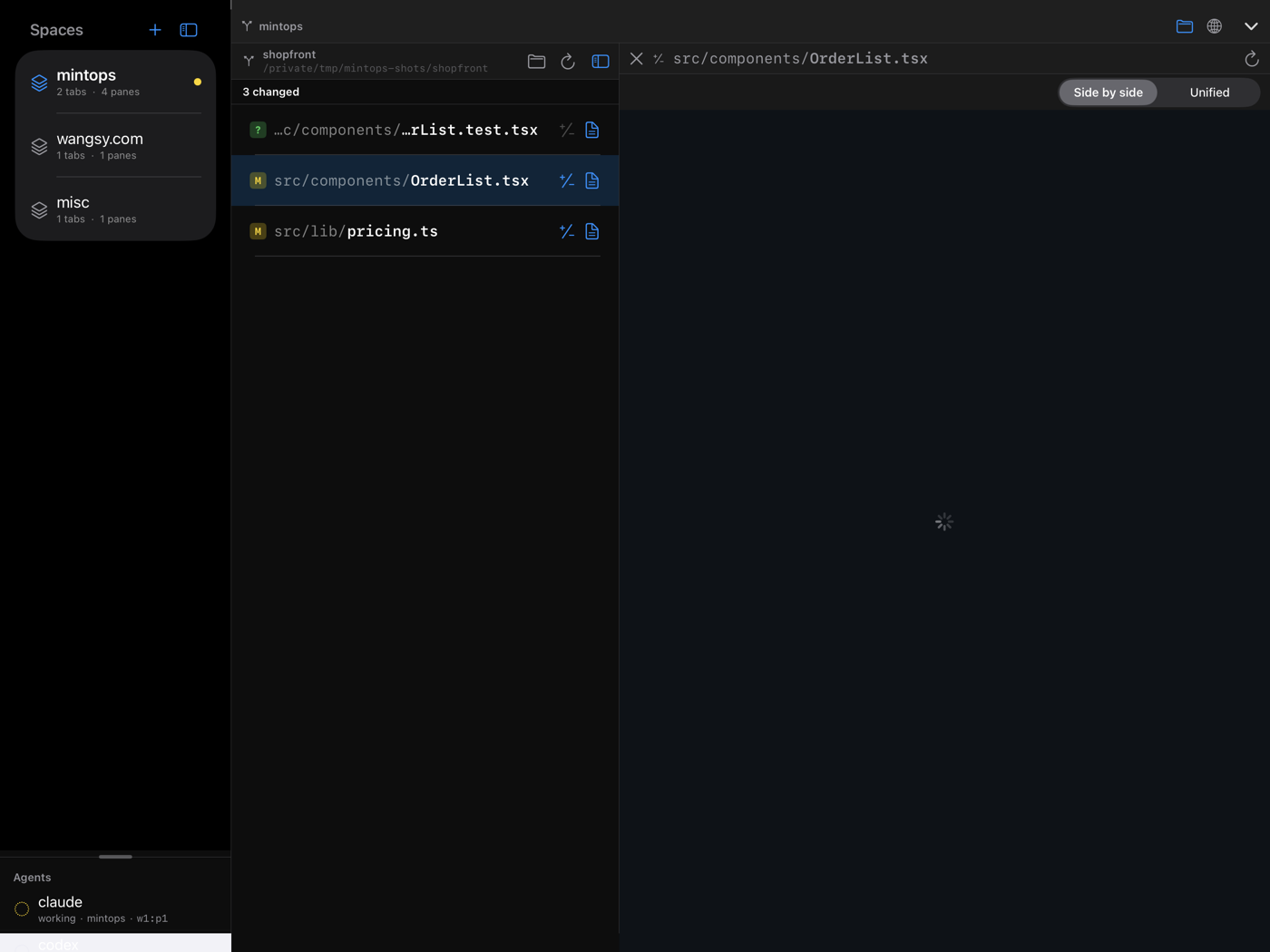
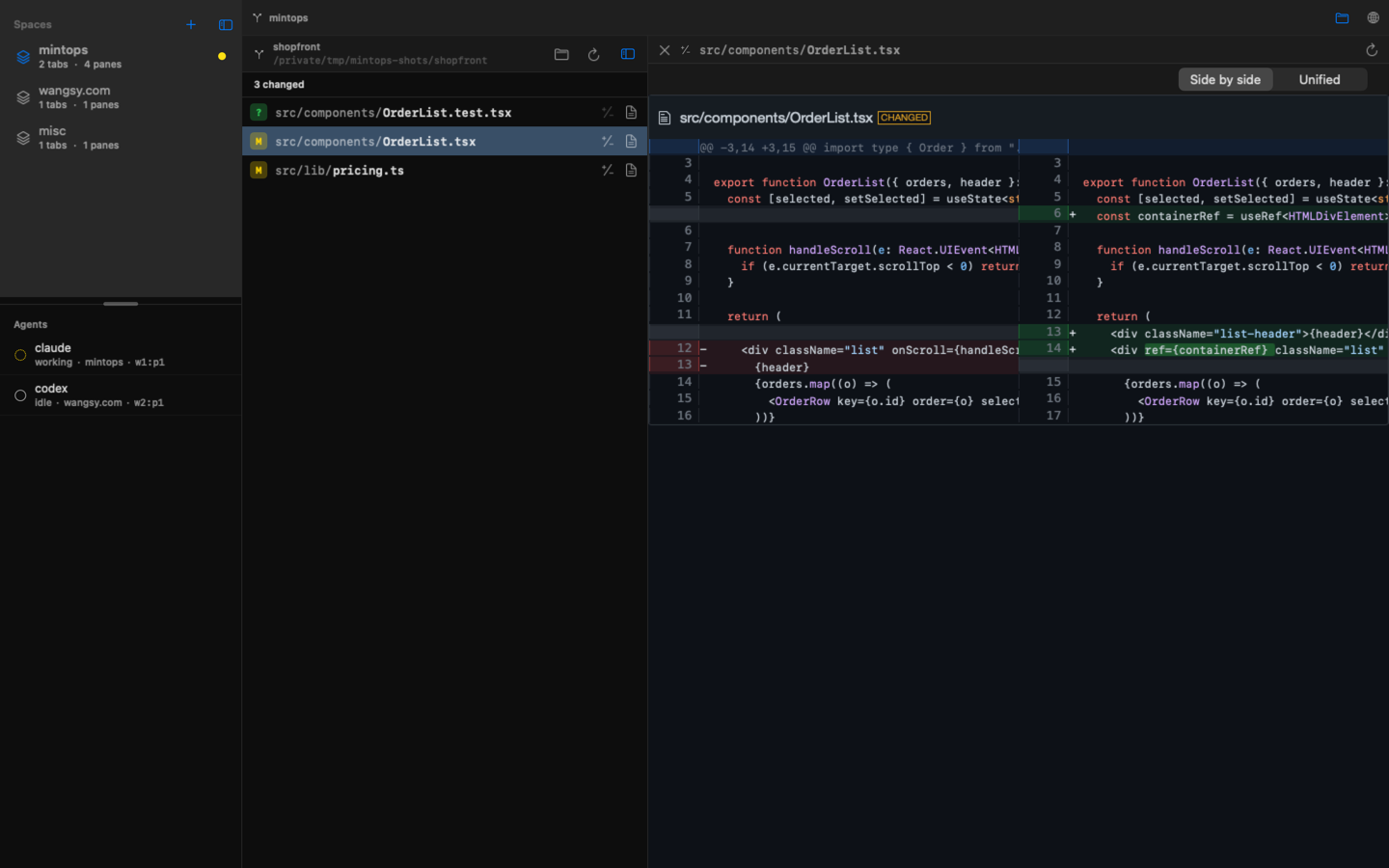
When you give an agent a task, the result is a set of file changes on the server. You should not have to type git status, git diff, and cat in a narrow terminal and scroll through colorless text to see them. Tap the folder button on the right of the tab strip in herdr mode and the workspace turns into a file browser. It is read-only, installs nothing on the server, and never runs a command that modifies your files.
- Per workspace, git-awareThe root is the git repository that contains the focused pane’s working directory. If it is not a git repository, that directory itself is shown.
- Changed-file listIn a git repository you see the difference between the working tree and HEAD (staged + unstaged + untracked) with M / A / D / R / ? badges. Each row has “Diff” and “View” buttons.
- Colored diffsDiffs are rendered with diff2html and syntax-highlighted. iPad and Mac switch between side-by-side and unified; iPhone uses unified.
- The right viewer for each fileMarkdown is rendered; HTML is opened in a web view together with the images, CSS, and JS it references; source code gets syntax highlighting and line numbers; images get a pinch-to-zoom preview; PDFs open in a PDF viewer. Markdown and HTML can be switched to a raw view.
- Directory tree and filename searchOutside a git repository you get a collapsible tree, and typing part of a filename finds matches recursively across subdirectories. Hidden files are included.
- Safe size limitsA size limit (100 MB by default, adjustable in Settings) applies to each file, image, and HTML resource so a huge file never freezes the app. The download cache is cleared when the session ends.
Terminal streams stay alive while you browse files. Switching back to the terminal is instant.
Web browser
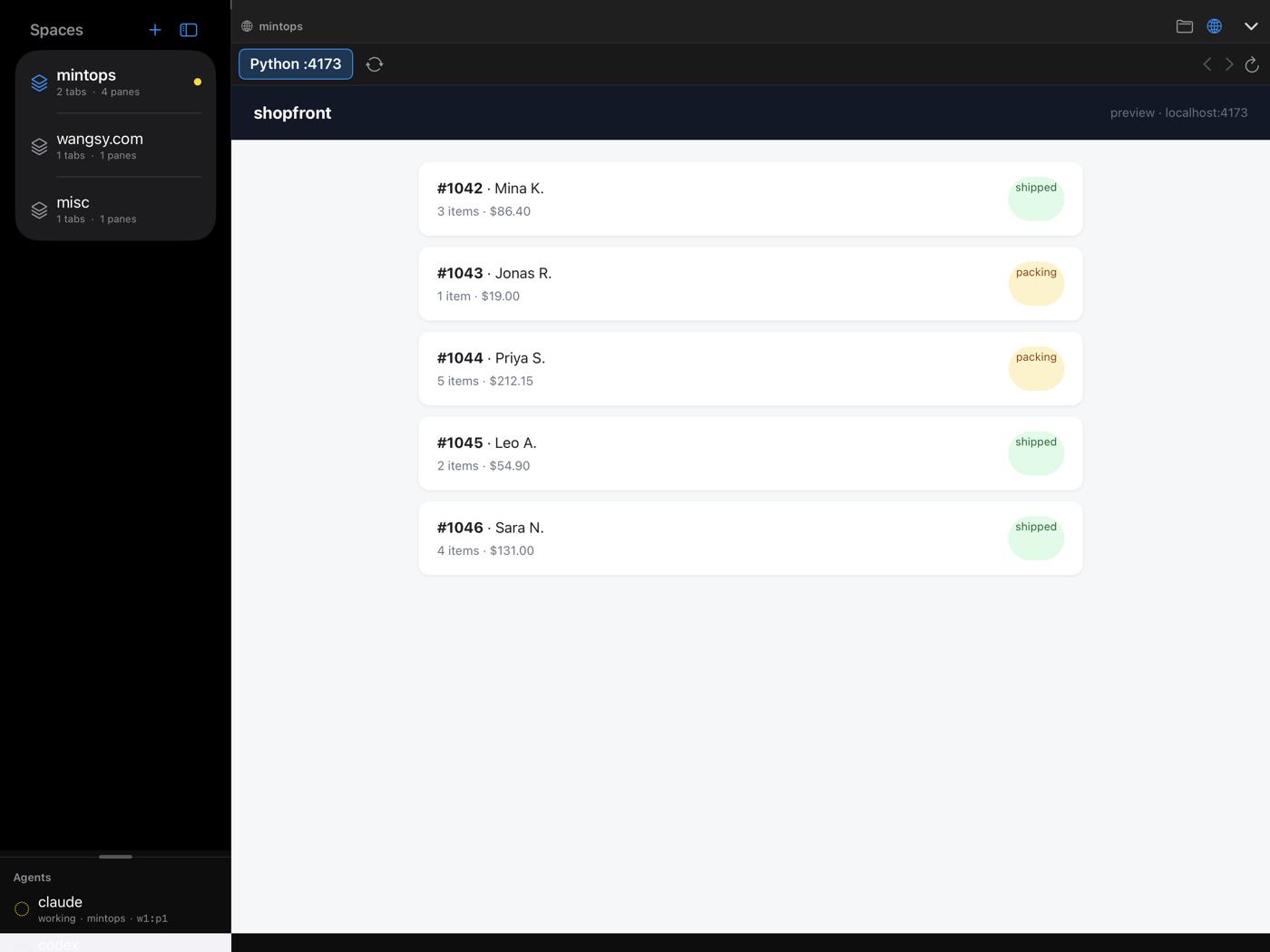
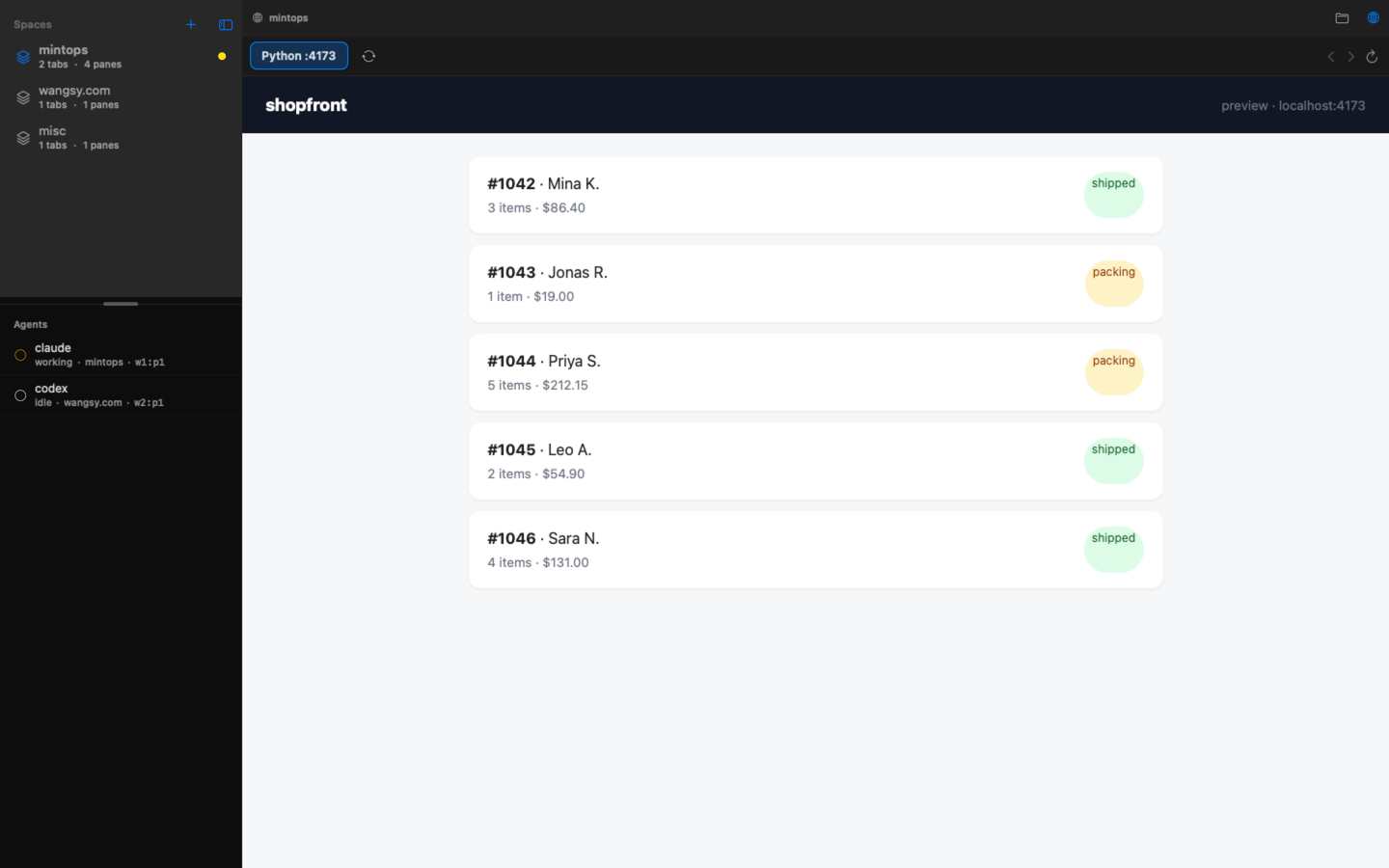
When an agent builds a web app, the result is a dev server running on the remote host (pnpm dev, next dev, python -m http.server…). Normally you would hunt for the port in terminal output, set up ssh -L forwarding in another terminal, and open a browser. On a phone that is practically impossible. In mintOps it is a single tap on the globe button in the tab strip.
- Automatic server discoverymintOps finds processes started under the workspace directory that are listening on TCP ports. It uses only
/procon Linux andlsofon macOS, so nothing is installed on the server. - HTTP onlyEach discovered port gets a real HTTP request, and only the ones that answer become tabs. Databases, Redis, and other non-HTTP ports are left out.
- One tab per portSeveral servers mean several tabs you can switch between. Each tab shows the process name and port.
- SSH port forwarding, handled for youA 127.0.0.1 port on your device is connected to the remote port over an SSH direct-tcpip channel. The same port number is tried first, so hard-coded references like
localhost:5173(HMR websockets, for example) keep working. Listeners bind to loopback only and are never exposed on the LAN. - A live tab listWhile the screen is visible the workspace is rescanned every 5 seconds. New servers get tabs, dead ones are removed, and a short grace period keeps tabs from flickering when a dev server restarts.
- Back · forward · reloadFollow in-page links inside the WKWebView. Cookies and login state persist across tabs and reloads within a session and are discarded when it ends. On the Mac you can attach Safari Web Inspector.
How it works
Globe button ──▶ list listening ports + process cwd on the server (/proc or lsof)
             ──▶ probe each port for HTTP from the device over direct-tcpip (3 s)
             ──▶ local listener on 127.0.0.1:<port> ↔ SSH channel ↔ remote port
──▶ open a WKWebView tab · rescan every 5 sAgent notifications
Hand an agent a task and get on with something else: when an agent in herdr waits for approval or a choice, or finishes, you hear about it right away. Tap the notification to open that agent’s pane.
- Questions and finishes onlyYou are notified only when an agent’s state turns to waiting (approve, choose) or finished. For one pane, only the latest notification stays.
- Push on iPhone and iPadArrives even with the app closed. When you connect, the app installs a small notification script (python3) on the server, and Mintech’s notification relay (relay.mintech.kr) delivers through Apple Push. The relay does not store notification content.
- Free up to 50 a day per deviceOne notice when the limit is reached, and today’s count in Settings.
- Local on the MacWhile connected, the Mac app watches agent states itself and shows local notifications. No relay involved.
- On and offTurn them off for everything in Settings, or per server with “Agent notifications” on each connection.
Server Mode and iCloud
Turn on Server Mode in the Mac app and that Mac shows up on the iPhones and iPads on your iCloud account as one of “My Macs”, a tap away. No public IP, no port forwarding, no address to copy.
- Found through iCloudThe Mac publishes its Tailcat address to iCloud, and it appears in the connection list on iPhone and iPad. If the address changes, the devices follow.
- Keys allowed automaticallyA key created on iPhone or iPad reaches the Mac’s allow list through iCloud, so you can connect moments later. Block a device in the Mac’s Devices list; delete a key on the device and the Mac drops it and closes its connection.
- Sign in with your Mac accountConnections use the Mac’s Remote Login (SSH) and your Mac account. Server Mode can start automatically at login.
- herdr built inherdr opens even when it is not installed on the Mac, using the copy built into the app. An installed herdr is used first.
Mac screen sharing
Turn on Server Mode › Screen Sharing and see and control that Mac from an iPhone, iPad or another Mac with one button (⇧⌘R). mintOps shares the screen itself — no separate remote-desktop app and no Mintech server (RustDesk-protocol compatible).
- Nothing to typeThe Mac creates a random password and iCloud hands it to your own devices only, so you are never asked for one. The screen button appears only for your iCloud-connected Macs.
- Hardware encodingCaptured with ScreenCaptureKit and sent as HEVC or H.264 from VideoToolbox, with the cursor shape and switching between displays.
- iPad trackpad modeMove a finger and the cursor moves from where it is; tap to click. Switch to tapping exactly where you touch under ⋯ › Pointer.
- In control on the MacIt needs the Screen Recording and Accessibility permissions. Disconnect anyone from the list of who is watching, and the screen stays awake while watched.
The Mac app
The Mac version is a notarized Developer ID app you download from this site. It runs without the App Store sandbox, so it can do everything a Mac app can.
- This MacPick “This Mac” in the connection list and the app runs herdr on your Mac directly — no Remote Login, no password — with the same herdr screen as a remote server. An installed herdr is used first, the built-in one otherwise.
- One server per windowA new window shows the connection list in the middle, and connecting turns it into the server’s screen. Open more servers in new windows (⌘N); picking one that is already open brings its window forward.
- Keyboard shortcuts⌘1–9 spaces, ⌥⌘1–9 tabs, ⌥⌘+arrows between panes, ⌘D/⇧⌘D split, ⌘W close a pane, ⇧⌘↩ zoom, ⇧⌘F files, ⇧⌘P web preview. Hold ⌘ for a second to see them. The same on an iPad hardware keyboard.
- tailcat CLI and ssh-agentInstall the bundled
tailcatCLI for Terminal, and forward the system ssh-agent’s keys to servers with SSH agent forwarding.
The foundation: an SSH terminal
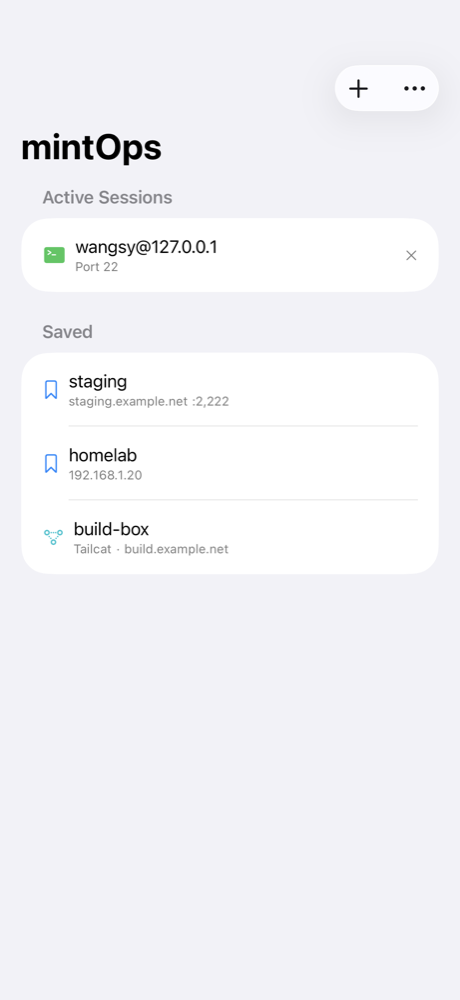
- Multiple SSH sessionsConnect to several servers at once in tabs. Connection details are saved and passwords are kept in the Keychain.
- A complete terminalA SwiftTerm-based emulator and a Citadel (swift-nio-ssh) SSH client, with 256 colors, mouse support, and resizing.
- AuthenticationPassword, SSH key, and None for Tailcat
no-auth-sshservers. - A connection screen that says whyConnect is never greyed out. Missing fields are highlighted in red with what to enter, and connecting to a Tailcat server without an identity key gets a warning first.
- SSH agent forwardingOn key-authenticated servers,
git pushandsshwith the app’s keys, without copying private keys to the server. Works in herdr panes too, and asks on the first signature. - Light and dark modeFollows the system, terminal and file viewer included. Eight terminal color themes.
- Select and copy textIn the terminal on iPhone and iPad: triple-tap, drag and long press to select and copy, and a mouse key for tmux and vim mouse mode.
- Open-source creditsThe libraries used and their full license texts are listed under Settings → About (on the Mac, the app menu → About mintOps).
iPhone · iPad · macOS
One codebase, three platforms. The layout adapts to each device’s screen size and input.
iPhone
- One herdr pane at a time, swipe to move between panes
- Agent push notifications
- Select and copy terminal text, custom keypad
- My Macs a tap away, screen included
iPad
- Sidebar (workspaces, agents) plus a work area, with zoom
- Hardware keyboard shortcuts; pinch in for all workspaces
- Your Mac’s screen, with a trackpad mode
- Side-by-side diffs, file list and viewer side by side
macOS
- A notarized Developer ID app downloaded from this site
- This Mac: herdr on this Mac without Remote Login
- Server Mode and screen sharing for your iPhone and iPad
- One server per window, keyboard shortcuts, tailcat CLI
How to use it
- Add a server with +, or paste a connection block you were given. On the Mac, “This Mac” in the connection list opens this Mac right away; on iPhone and iPad, your Server Mode Macs are in the list.
- If the server has herdr, mintOps enters herdr mode automatically. Pick a workspace in the sidebar and a tab in the tab bar.
- Give the agent work from the terminal inside a pane or from the prompt bar at the bottom.
- Tap the folder button to review changed files, diffs, and newly created documents and images.
- Tap the globe button to open the web servers running in the workspace, right inside the app.
System requirements
- iOS 26.2 or later (iPhone · iPad), macOS 26.2 or later. The Mac version is downloaded from this site (not distributed through the App Store).
- A server you can reach over SSH. Native herdr mode turns on automatically when herdr is installed on the server.
- Tailcat connections require
tailcat serverunning on the server via the tailcat CLI. Plain SSH connections do not need it. - The file browser and web browser use only standard tools on the server (
git,find,/procorlsof). Nothing extra to install. - Agent notifications need python3 on the server. Server Mode and screen sharing need Remote Login on the Mac and the same iCloud account; screen sharing also needs the Screen Recording and Accessibility permissions.
Privacy
mintOps has no accounts. Terminals, files and screen sharing all run directly between your device and your server over SSH (or SSH inside a Tailcat tunnel). Connection details and Tailcat identity keys are stored only in your device’s Keychain and app storage, and My Macs information travels only through your own iCloud. The only thing that goes through Mintech’s servers is agent push notifications on iPhone and iPad; the relay keeps only the device details delivery needs and does not store notification content.
Privacy Policy by language
Download for Mac
The Mac version is downloaded from here, not the App Store. It is signed with our Apple Developer ID and notarized by Apple, and it has everything: This Mac, Server Mode, screen sharing, built-in herdr and the tailcat command-line tool. Unzip it and drop it into your Applications folder. Requires macOS 26.2 or later.
Download mintOps for Mac (zip) Version 1.1 · build 2610271150 · 49.1 MB
Notarized, so Gatekeeper only shows the usual "downloaded from the internet" confirmation on first launch. All Mac builds
Release notes
Roadmap
What is being built and what is done, per release.